WordPress to Webflow Migration: A Step-by-Step, SEO-Safe Guide (2026)
Learn how to migrate from WordPress to Webflow without losing SEO, rankings, traffic, backlinks, or AI visibility.
Learn how to migrate from WordPress to Webflow without losing SEO, rankings, traffic, backlinks, or AI visibility.
Real projects across branding, packaging, websites and growth.
Straight answers on this topic from the UnFoldMart team.




From branding and packaging to Webflow websites, SEO, AEO and GEO, UnFoldMart brings strategy, design and growth under one team for 250+ brands across 8 markets. Tell us where you want to grow and we'll show you the fastest way there.
A WordPress to Webflow migration can be completed without losing SEO rankings, organic traffic, backlinks, or AI visibility when every URL is properly mapped, redirected, and optimized. The key is preserving the signals search engines and AI assistants rely on, including URLs, structured data, internal links, metadata, and image alt text. This guide explains the complete seven-step migration process, common mistakes that cause traffic drops, and how to launch a Webflow website while maintaining your existing search performance and future AI search visibility.
Key takeaways
WordPress still runs a large share of the web, so most teams moving to Webflow are leaving an established, indexed site with real ranking history. That history is an asset, and a careless migration throws it away. Done properly, a move to Webflow keeps your rankings, your traffic, and your AI citations intact while giving your marketing team a site it can edit without a developer.
This guide is written for marketing leads, founders, and in-house teams planning the move, whether you run a content-heavy blog, a B2B site, or a lead-generation site. It focuses on protecting search performance, because that is where migrations most often go wrong.
"WordPress powers around 40 percent of all websites, while Webflow holds under one percent, so most Webflow migrations start from an established, already-indexed WordPress site."
Source: W3Techs usage statistics, 2026.
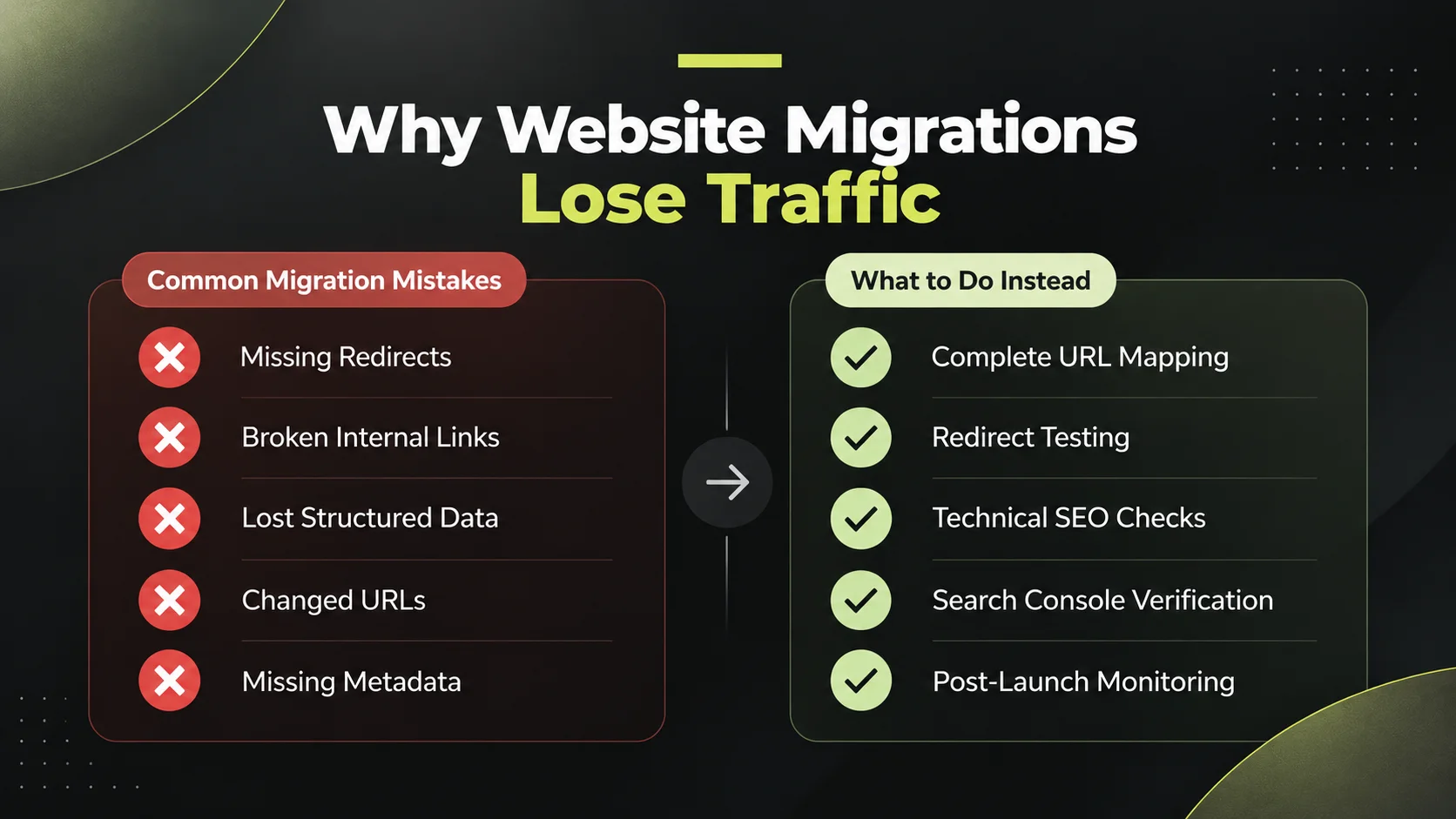
An SEO-safe migration means that after launch, search engines and AI assistants can still find, understand, and credit every page they valued before. In practice that means three things are preserved: the URL (kept or redirected), the on-page signals (titles, meta descriptions, headings, structured data, alt text), and the link graph (internal links and, through redirects, external backlinks).
Webflow and WordPress are different systems, so you are not copying a database across. You are rebuilding the site and then re-pointing every signal to its new home. The work is the mapping, not the moving.
If you would rather hand the technical cutover to a specialist team, UnFoldMart runs these migrations as part of its Webflow development service.
The first stage is measurement, not building. You cannot prove a migration was safe unless you recorded where you started. Export a full list of your indexed URLs, your current rankings, and your top organic pages before you touch anything.
"URLs cited by AI assistants are on average 25.7 percent fresher than the URLs ranking in classic organic results, which makes clean dates and preserved pages matter more after a migration, not less."
Source: Ahrefs, AI Assistants Prefer to Cite Fresher Content, 2025.
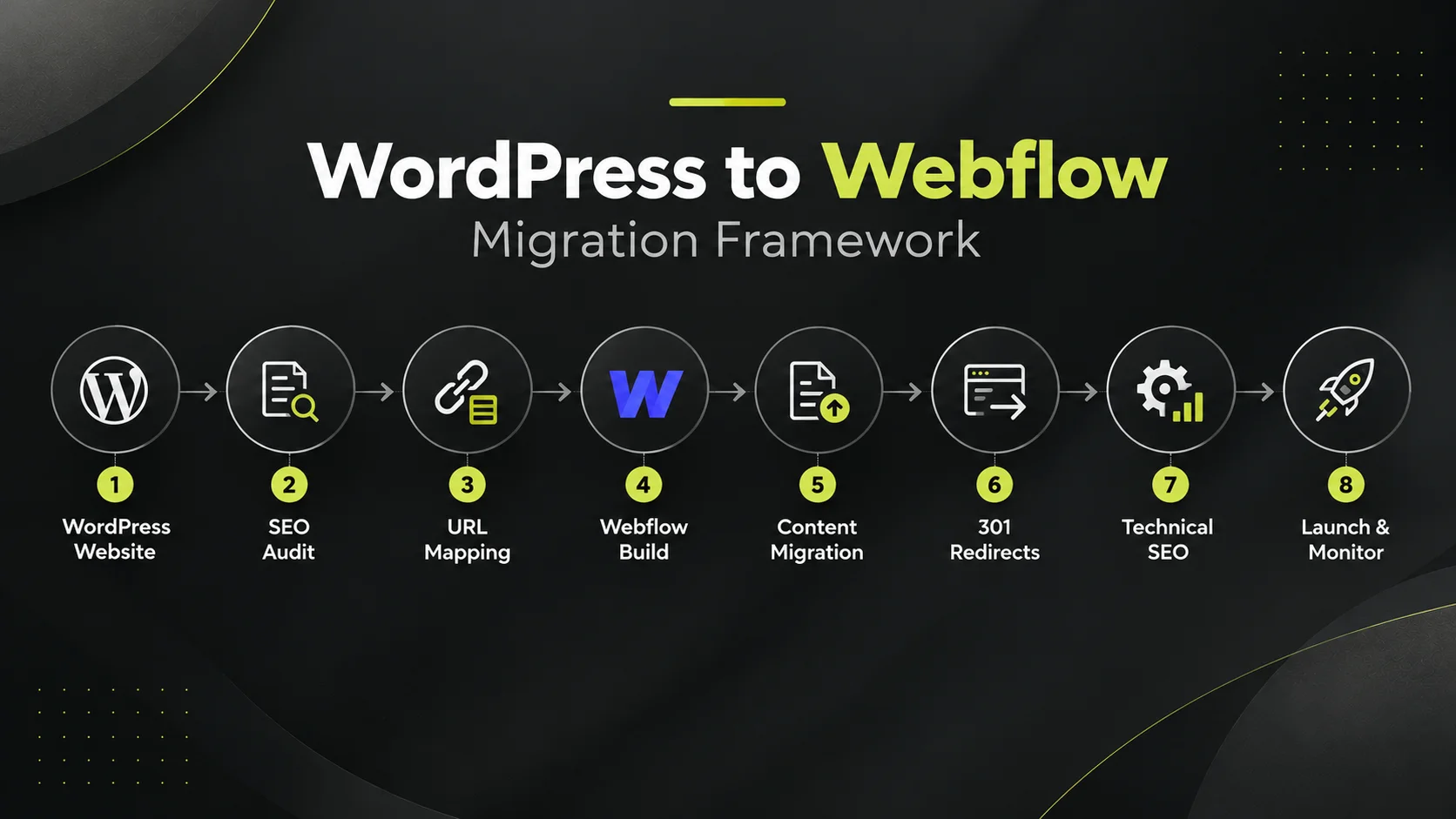
URL mapping is the single most important step in a WordPress to Webflow migration, because an unmapped URL is a dead page that loses its ranking and any backlinks pointing to it. WordPress and Webflow build slugs differently, and Webflow reserves some URL structures, so a one-to-one copy is rarely possible.
Build a spreadsheet with the old URL in one column and its new Webflow URL in the next. Keep paths identical wherever you can. Where you cannot, point the old URL at the closest equivalent page, never at the homepage by default, because a redirect to an irrelevant page passes little value and frustrates users.
With the map in hand, rebuild the site structure in Webflow before moving any content. Create a Webflow CMS Collection for each content type you had in WordPress, such as blog posts, case studies, or landing pages, and match the fields to the data you are bringing across.
Keep your heading hierarchy clean during the rebuild: one H1 per page, logical H2s and H3s, and headings phrased as the questions people actually ask. That structure is what lets search engines and AI assistants extract answers from your pages.
Move content into the Webflow CMS Collections you built. For a small site you can copy pages across by hand, which gives you a chance to tidy thin or outdated posts as you go. For a large blog, a CSV export from WordPress imported into the Webflow CMS is faster, and several third-party tools exist to help.
Real, established options include the official Webflow Pages plugin for WordPress, and third-party converters such as Udesly and WP2Webflow. Whichever route you take, carry over the full body content, the title and meta description, the featured image, and the image alt text, not just the text.
A 301 redirect tells search engines a page has moved permanently and should carry its ranking signals to the new URL. Every old URL that changed in your map needs one. In Webflow, 301 redirects are added under site settings in the publishing or hosting section, and you can enter them individually or in bulk from your mapping spreadsheet.
Redirect to the exact matching page, not the homepage. A redirect to an unrelated page is treated as a soft error and passes little value. Test a sample of redirects before launch, and plan to test all of them immediately after.
"A 301 redirect is the correct signal when a page has permanently moved, and it passes ranking signals to the destination URL, which is why complete redirect mapping is the core of a safe migration."
Source: Google Search Central, redirects and site moves documentation, 2026.
Webflow does not carry over the SEO settings your WordPress plugins managed, so you re-add them. This is also the moment to preserve the signals that feed AI Overviews and assistant citations, not just classic rankings.
Keeping structured data and clean content intact is also what protects your visibility in AI answers. If getting cited by assistants is a goal, pair the migration with answer engine optimisation and generative engine optimisation work rather than treating search as an afterthought.
When the Webflow site is built, content is in, redirects are set, and technical SEO is re-added, you are ready to publish and point your domain. Keep the WordPress site reachable until you have confirmed Webflow is live and resolving, so you have a fallback if something is missing.
Launch-day sequence
The migration is not finished at launch. For the first few weeks, watch Search Console for crawl errors, spikes in 404s, and ranking movement. Some short-term fluctuation is normal as search engines re-crawl and re-index. A sustained drop on specific pages almost always traces back to a missing or wrong redirect, which you can fix the moment you spot it.
Compare against pre-migration export
If rankings need rebuilding after the move, or you want to grow beyond where WordPress had you, an ongoing SEO engagement picks up from the clean technical base the migration gives you.
Planning a move off WordPress?
Talk through your URL map, redirects, and launch plan with one team that handles the Webflow build and the SEO together. Free, 30 minutes, no sales pitch.
Got Questions? We’ve Got Answers – Clear, Simple, and Straight to the Point
Backlinks point to specific URLs. As long as those URLs are 301-redirected to their new Webflow equivalents, the link value transfers to the new page. Backlinks to URLs you fail to redirect are effectively lost, which is why mapping your most-linked pages first matters.
Neither is inherently better for SEO; both can rank well. Webflow gives you clean code, fast hosting, and native SEO controls without plugins, which many marketing teams find easier to manage. WordPress offers more plugins and flexibility. The deciding factor is usually who maintains the site and how.
Yes. Blog posts move into a Webflow CMS Collection, either by manual copy for small blogs or by CSV import for large ones. Real tools such as the official Webflow Pages plugin, Udesly, and WP2Webflow help with bulk moves, but every method needs manual quality checking afterwards.
You need to redirect every URL that changes and that had traffic, rankings, or backlinks. If a URL stays identical in Webflow, it needs no redirect. Thin or dead pages with no value can be left to 404 deliberately, but decide that on purpose rather than by accident.
It depends on size. A small brochure site can move in one to two weeks, while a large content site with hundreds of posts and heavy redirect mapping can take four to eight weeks. The design rebuild and the URL mapping are usually the longest stages, not the content transfer itself.
Not if it is done properly. SEO drops happen when URLs change without redirects or when on-page signals are lost. If every old URL is kept or 301-redirected to its closest match, and titles, meta tags, structured data, and internal links are preserved, rankings carry over. Short-term fluctuation during re-indexing is normal.

.webp)